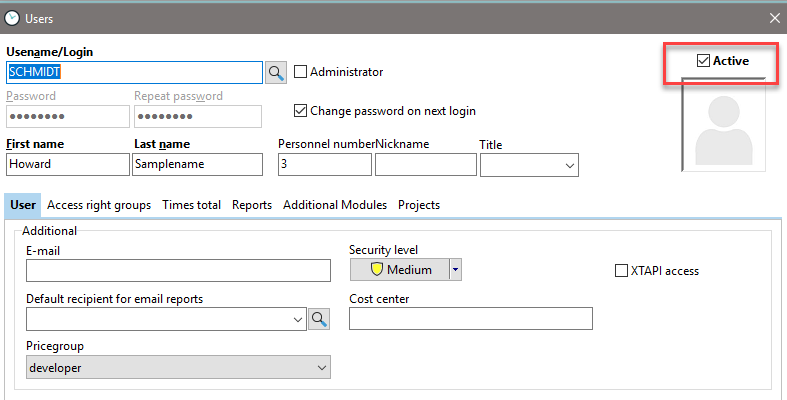
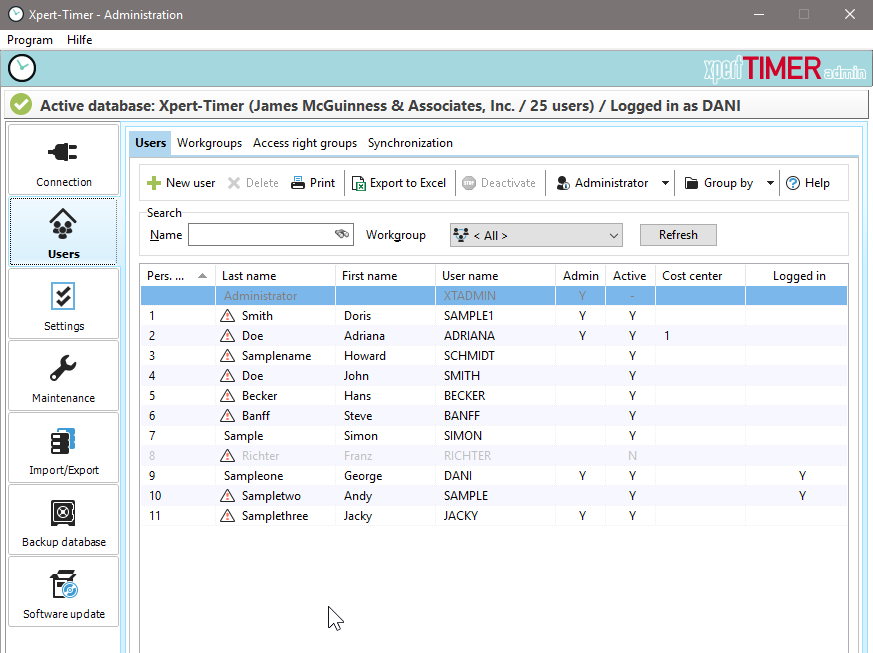
In this menu item, you can see the employees who are registered or created in the Xpert-Timer system. Here, you can also create, edit, or delete new employees for the Xpert-Timer system.
|
You can also create new employees in your Xpert-Timer. To do this, open the employee management in the "Window" menu item. |

|
Employees who are using an outdated version are marked with an exclamation mark and highlighted in red. |
Sometimes it is necessary to log all employees out of the system. If you right-click on a user name, you can send them an email or log the employee out of the system, e.g., to install a new update. Please note that this function is not permitted in all company networks. However, it is worth a try.
The administrator menu offers the following options:
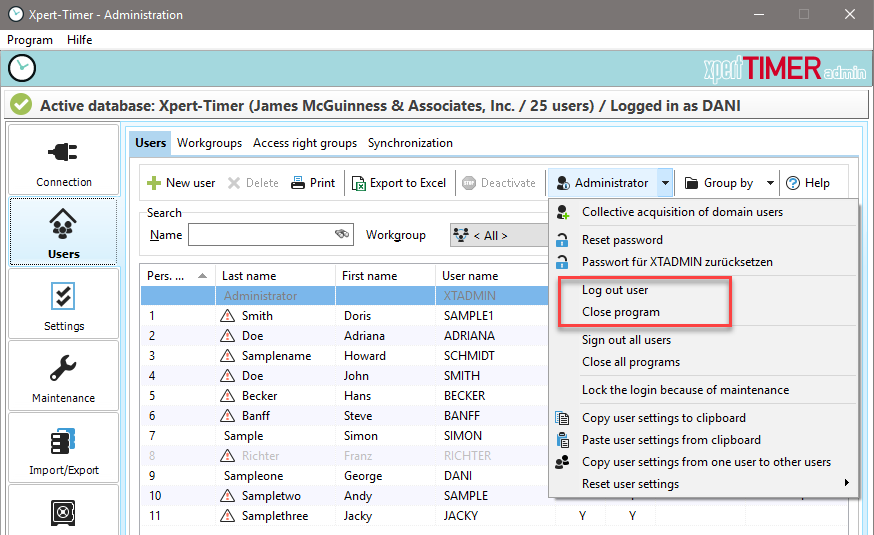
In this menu, you can send a command to active employees to log them out of the system. This is necessary, for example, if a user locks the program during a program update on the network by remaining logged in. Check whether you can rename XpertTimer.exe on the network. If this is possible, your update will also run correctly.
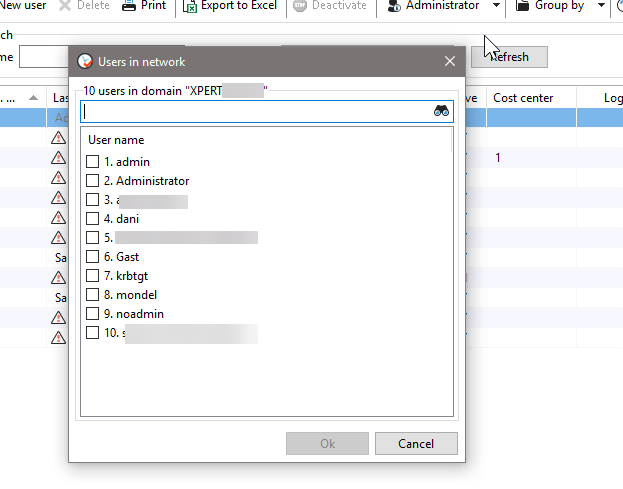
You can also use this menu to log all your domain users into the system at once. To do this, select "Collective registration of domain users." A dialog box will open where you can select the domain users you want to log into Xpert-Timer.
Right-clicking on the employee list will give you additional options for editing the entries:
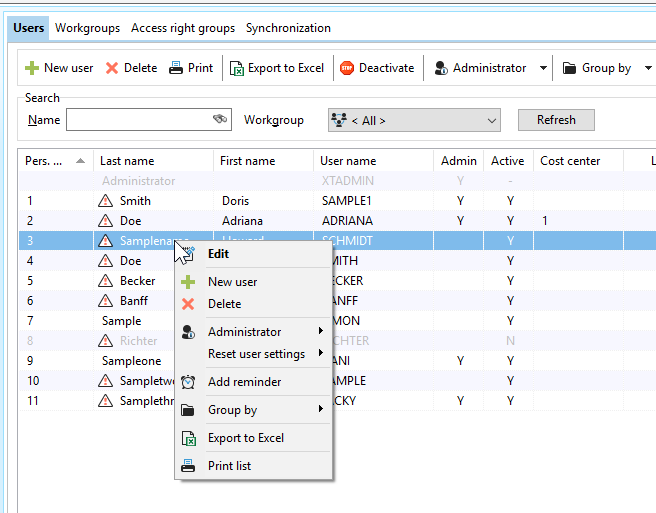
Please note that it is better to "deactivate" an employee than to delete them. If you delete them, you will be asked what you want to do with the recorded times. You could also delete them or transfer them to another employee. If you only deactivate the employee, the times will be retained and a license to register a new employee will be released by the system.
You can access the employee dialog by double-clicking on the employee in the employee list: