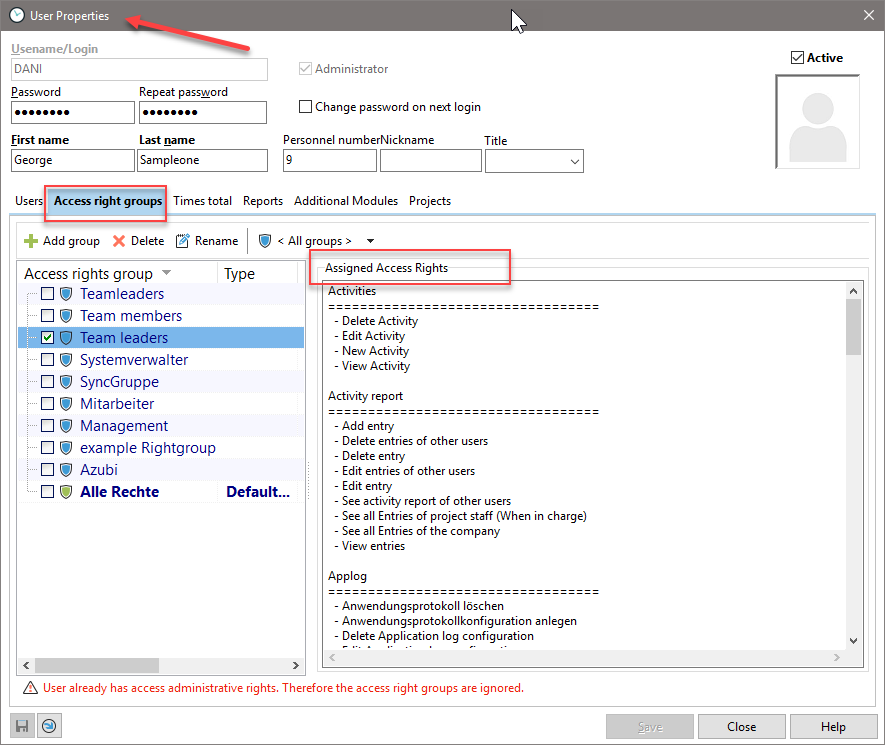
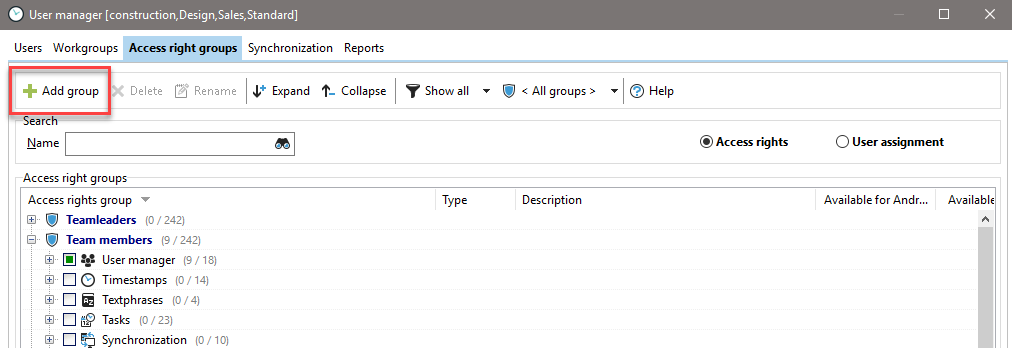
Create and assign access rights. You can create individual rights groups and assign them to the respective employee by checking the corresponding box. For example, a department head often has more rights than a clerk. If you create a new rights group here, you must assign the rights or access options it contains. This is done in the main dialog box of the employee management.
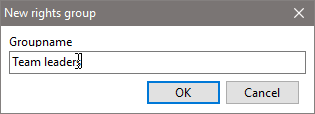
In the "New Rights Group" dialog, enter the group name. In the example, we are creating the rights group "Department Management."
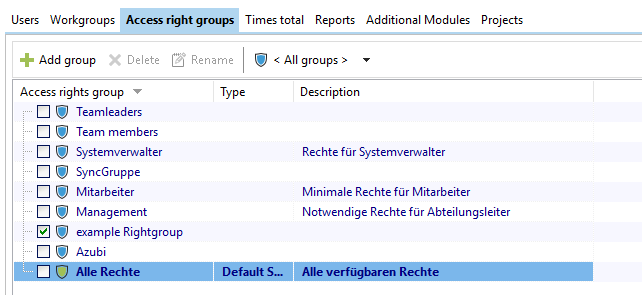
The new rights group now appears as a selection in the "Rights Groups" tab.
You can then see the rights assigned to the respective rights group in the "Rights Groups" tab in the "Assigned Rights" area.