In the single-user version, it is possible to move Xpert-Timer from one computer to another without any problems. In the multi-user version, if the Windows user name also changes, you must make changes in the employee management.
Here is a detailed description of the procedure for single-user and multi-user operation.
For single users:
1.Start Xpert-Timer on your old system and make a note of the database path. You can find this in the Project Manager under the menu item "Help" -> "About Xpert-Timer" -> "System Info".
2.Navigate to the path.
3.Exit Xpert-Timer.
4.Now copy the xt.mdb (database file) or xt.sqlite (database file) to a USB stick or network drive that you can also access from your new computer.
5.Now install the latest version of Xpert-Timer on your new system. Install the 30-day trial version.
6.Start Xpert-Timer and search for the path to the database again in the menu item "Help" -> "About Xpert-Timer".
7.Navigate to the path.
8.Exit the "new" Xpert-Timer.
9.Now copy and replace the "new" xt.mdb or xt.sqlite with the one from your old computer.
10. Start the "new" Xpert Timer. All data should now be visible on the new system.
If you receive a database error stating that the database format cannot be read, this may be because you copied the xt.mdb from the old computer while Xpert-Timer was still running on the old system. Make sure you completely exit Xpert-Timer before copying.
In multi-user mode:
Log in to the Xpert-Timer system with a user who has administrator rights in Xpert-Timer and is not the user who is moving with their computer. If the employee's Windows username changes with the new system, you must adjust this new username accordingly in the employee management system.
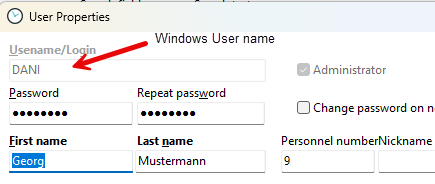
If the name is grayed out, you do not have sufficient rights to change the name, or you are trying to change your own name.
Once this name has been changed, the employee can restart Xpert-Timer from the new Windows system and connect to the corresponding database on the server. In multi-user mode, it is recommended to install XpertTimer.exe on a network drive so that it is no longer necessary to manage an Xpert-Timer installation on each individual computer.
If you still want to install it on your local computer, we recommend the "Client Only Version," which you can select in the installation routine. When you start it for the first time, you will need to establish the database connection. The connection data will then be stored locally on your computer.