Select the "Window" menu item to access the "Task templates." These templates allow you to save individual tasks as templates or create task packages, which you can then assign to different projects using drag & drop. This means you don't have to create each task individually for the same processes in each project.
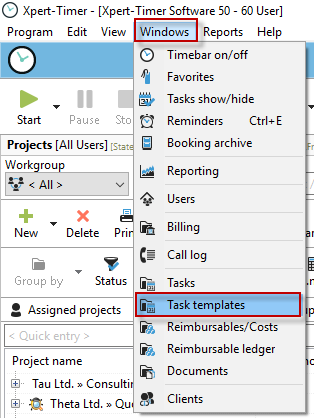
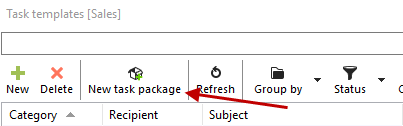
Create a new task package in the Task Templates dialog box:
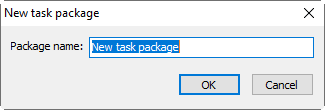
Assign a meaningful name:
The task package will only be visible in the list of task templates once a task has been assigned to this package. Therefore, create a new task template.

Assign the name of the task and select the corresponding task package.
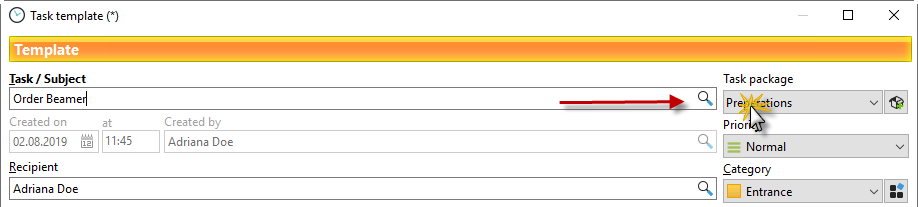
Your new task will now appear in the template list.

Group by task package to display the package:

Now you can also add existing tasks in your task list to the task package using drag & drop.
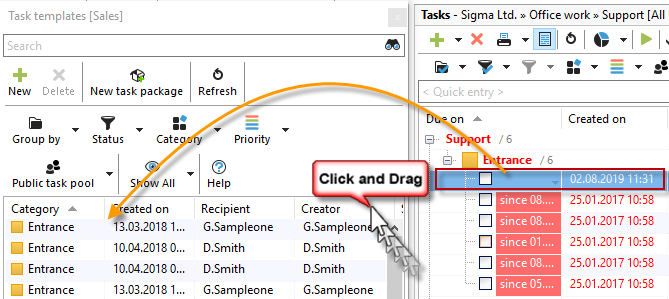
After you have added x templates to the package (this also works with an existing task by dragging and dropping it into the dialog), you can assign the task package to a project by dragging and dropping the package onto the project.
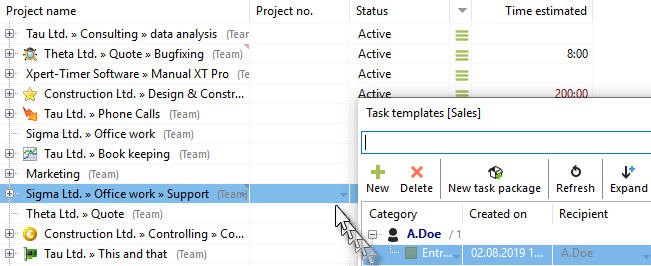
This assigns all tasks from the task package to the project.