Team projects are marked with the word (Team) in Xpert-Timer. This means that several employees can record time for this project at the same time. The project must be assigned to every employee who is to work on this project.

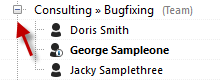
If you have the necessary rights, you can expand the team projects using the "+" and then see the employees who have been assigned to the project:
You must create the project as a team project in the "New Project" dialog or convert it to a team project later in the project properties under the "General" tab.

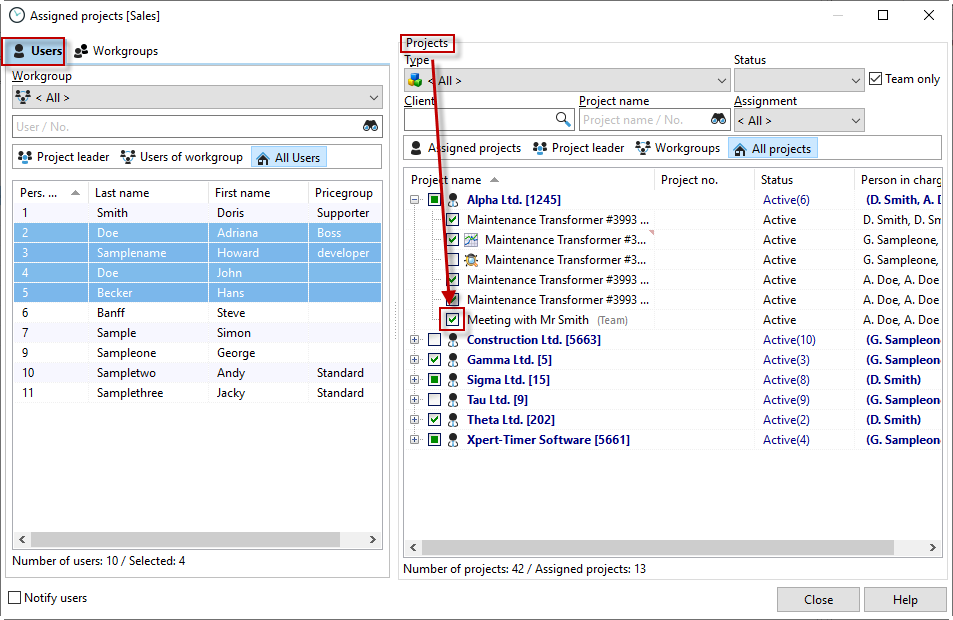
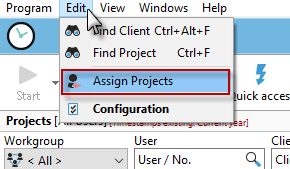
The easiest way to assign projects to individual employees is to use the "Edit" menu item and select "Assign projects." You can also assign projects to employees in the project properties via the "Employees" tab. However, if you are creating several projects at once, we recommend assigning them via the "Assign projects" dialog box. This way, you do not need to open each project manually.
In the"Project assignment" window that is now visible, you can assign multiple projects to multiple employees at the same time. This means you don't have to edit each individual project. Use the mouse to select all employees in the "Employees" area that you want to assign to one or more projects. Now, in the "Projects" area, check the box next to the project that you want the employees to see. If you are working with a large number of projects, you can filter the projects to make selection easier.