For optimal and time-saving use of the program, we recommend that you memorize some of the keyboard shortcuts listed below. With Windows 10, the Windows key has been reassigned. In this case, you must use CTRL+ALT or CTRL+Shift instead. Please also note that other programs you use may also use keyboard shortcuts. The program that was started first is assigned the corresponding keyboard shortcuts.
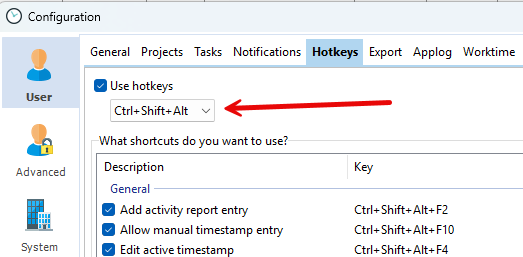
Please set the desired combination in the Xpert-Timer configuration.
System-wide shortcuts: |
|
|
|---|---|---|
Win + X |
|
Action menu that allows you to access the most important functions |
Win + End |
: |
Pause / Continue |
Win + Backspace |
: |
Open the list of recently used projects |
Win + ENTER |
: |
Open project menu for quick access projects |
Win + '0' ... '9' |
: |
Quick access for projects |
Win + F2 |
: |
Add history entry |
Win + F3 |
: |
Open customer management |
Win + F4 |
: |
Edit active timestamp |
Win + F5 |
: |
End workday |
Win + F6 |
: |
Call up evaluation module |
Win + F7 |
: |
Show/hide project manager |
Win + F8 |
: |
Show/hide timeline |
Win + F9 |
: |
Show task list |
Win + F10 |
: |
Add note to current project |
Win + F11 |
: |
Create new task for current project |
Win + F12 |
: |
Interim stamp with comment |
Win + Space |
: |
Quick search for project name |
|
||
Shortcuts in Project Manager: |
||
Ctrl + Alt + Z |
: |
Times on/off |
Ctrl + Alt + A |
: |
Tasks on/off |
Ctrl + Alt + H |
: |
History on/off |
Ctrl + Alt + L |
: |
Services on/off |
Ctrl + Alt + N |
: |
Notes on/off |
Ctrl + Alt + D |
: |
Documents on/off |
Ctrl + Alt + M |
: |
Employees on/off |
Ctrl + Alt + E |
: |
Reminders on/off |