The application log records the duration of program use. This means that at the end of the month, you will know exactly how many hours you spent working in your email program, for example, or how many hours you spent in your accounting program or browser. Please note that the application log cannot recognize different applications within a browser. Online applications cannot therefore be recorded.
The application log works with blacklists and whitelists and requires triple activation so that the employee can decide for themselves whether data may be recorded or not. Please note that this module should only be used with the employee's consent, as background recording and thus monitoring of the employee is not permitted by law.
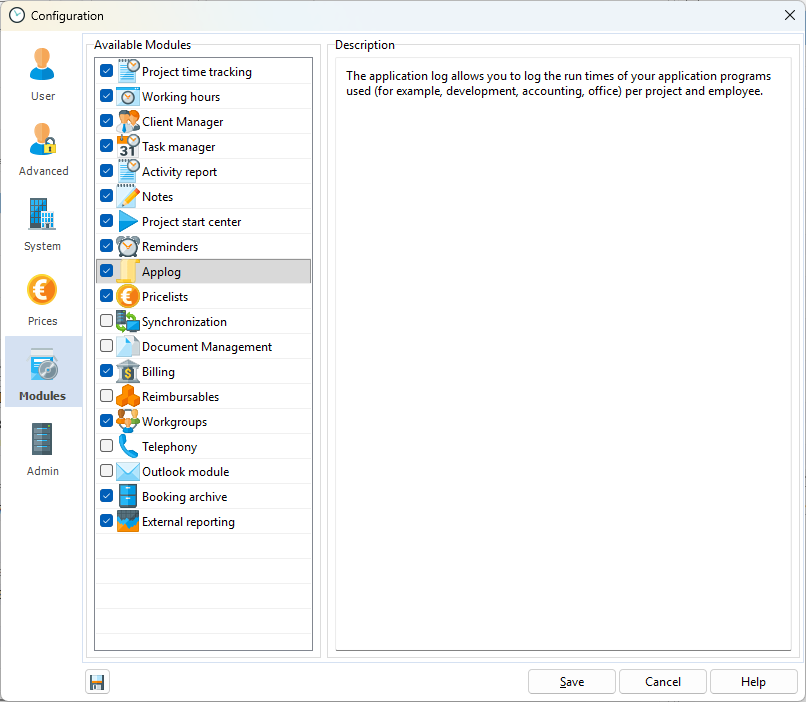
The first step is to activate the application log in Configuration -> Additional Modules.
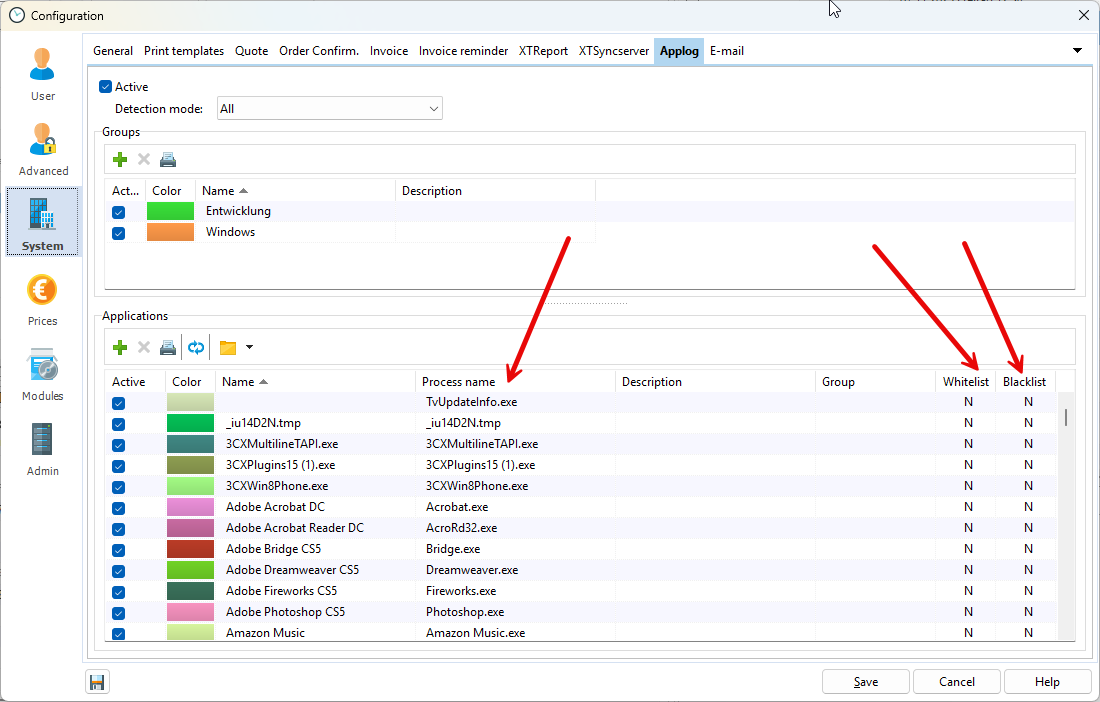
In the example below, the recording mode was set to "All" for one week. This means that all applications were transferred to the Xpert-Timer system.
In the second step, the administrator decides which programs are placed on the whitelist or blacklist. Programs on the whitelist can be recorded, while programs on the blacklist are never recorded in the background.
Then the recording mode should be set to "Only if on whitelist" to ensure that only the selected programs are recorded.
The groups can be created individually and are used for organization. You can then sort/group the program list according to these groups.
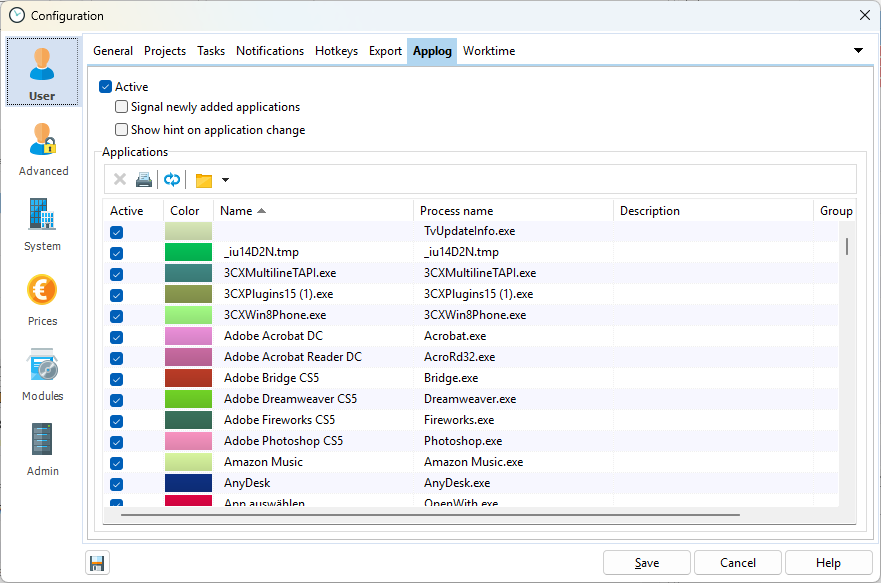
The third necessary step is for the employee to also give their consent for the duration to be recorded. They can find the setting for this in the configuration under "Users" -> Application log.
Here, the employee can explicitly activate/deactivate the log and include or exclude programs.
If your employees do not have the right to open the configuration, make sure you have their consent for tracking.
The application log is disabled by default.