You can find workgroup management in the menu item "View" -> Employees, in the "Workgroups" tab.
Workgroup assignment is divided into two areas: On the left, you can see the workgroups and the associated employees (see figure below). In strict separation (defined in XTAdmin), each employee can only belong to one workgroup. In the cross-workgroup setting (also defined in XTAdmin.exe), an employee can also be assigned to multiple departments.
In the strict separation, the "Project assignment" button is not available, as each project can only belong to one department. An assignment is therefore not necessary. In the cross-departmental workgroup setting, projects can be assigned to multiple departments.
|
Note |
|---|---|
In the first step, you decide whether you need a strict or a cross-departmental separation of departments in the company. In the second step, you then assign the created employees to a workgroup using drag & drop. |
|

Now, in the second step, assign the created employees to a workgroup using drag & drop:
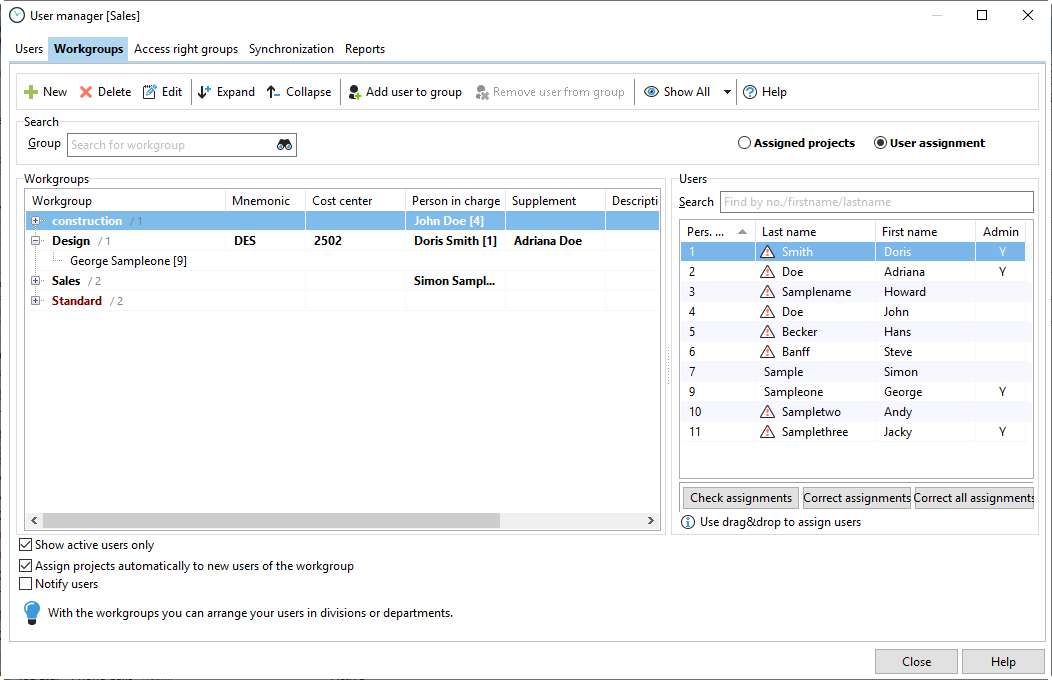
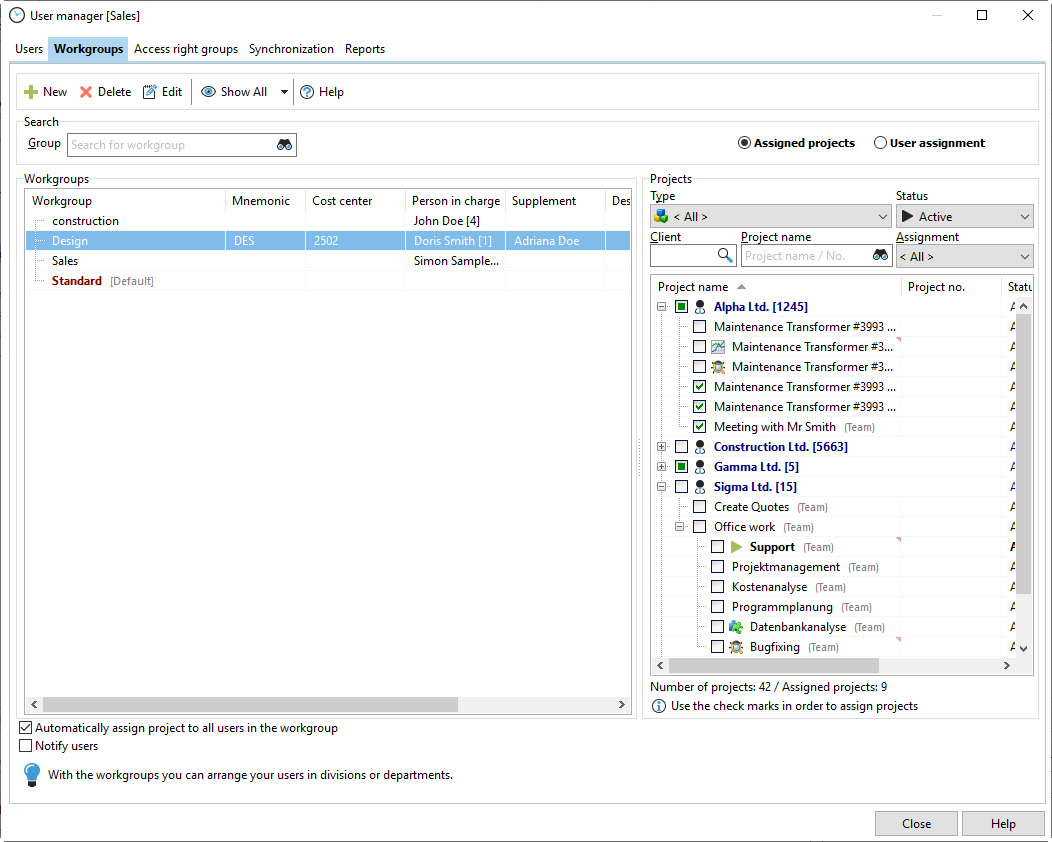
In the third step, assign the projects already created in the project manager to the corresponding workgroups by checking the appropriate box:
In the fourth step, the projects belonging to the work group are now assigned to the employees. You will find the menu item for this in the project manager -> "Assign employees".
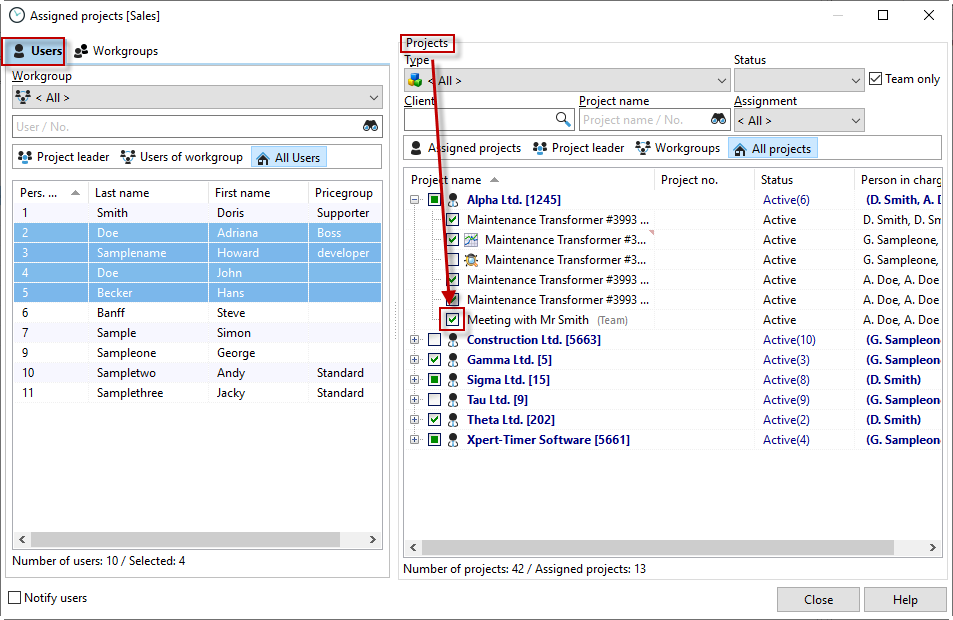
Now you need to control the visibility of the projects, etc. via the rights groups. This allows you to specify that an employee can only see the projects of their workgroup that have been explicitly assigned to them, or that they can see their assigned projects as well as all projects of the workgroup (we see this option as "department manager"), or that they can see all projects of the company across workgroups (we see this option as "controller" who has to evaluate all projects).