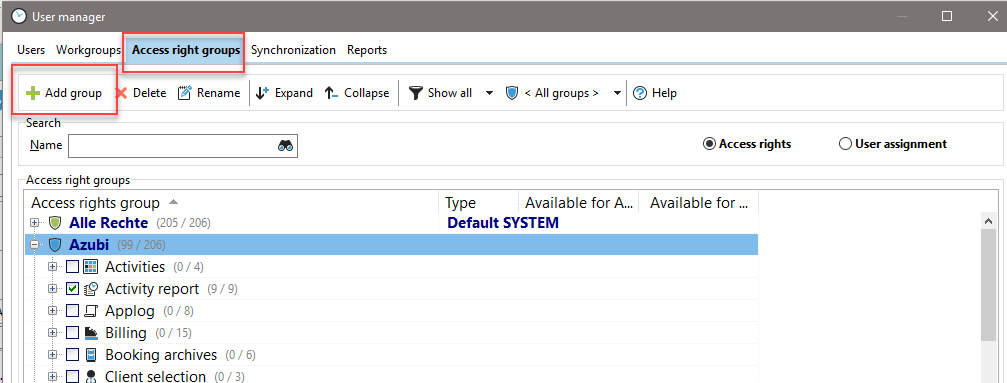
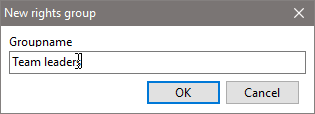
You can create new rights groups in the "Rights groups" tab in employee management or directly in "Employee data." To manage your employees' access rights, you should create several rights groups. To do this, click on "New rights group" and assign a meaningful name. In the example, we are creating the group "Department management."
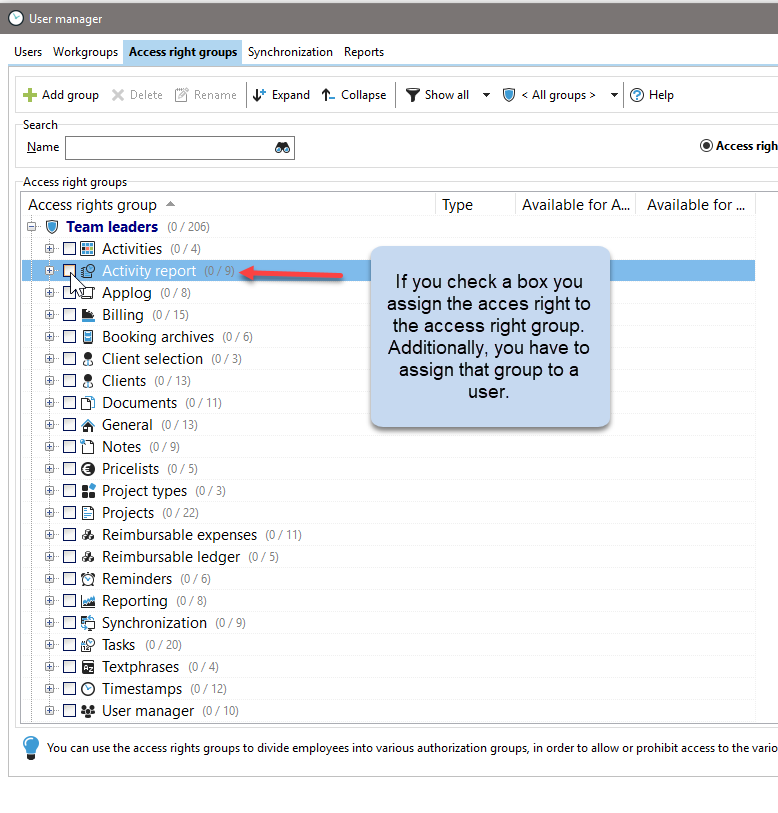
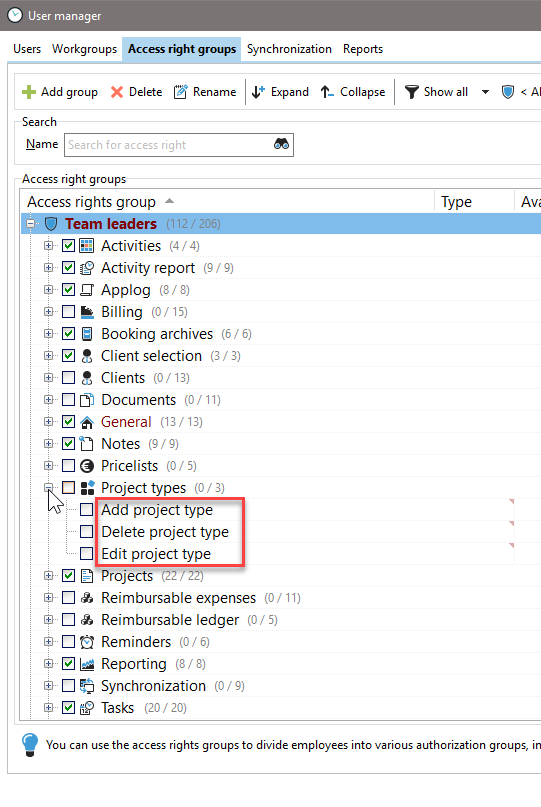
Then expand the newly created rights group in employee management and check the rights that this group should receive.
You can then see the rights assigned here in the employee data under the "Rights Groups" tab in the "Assigned Rights" area.
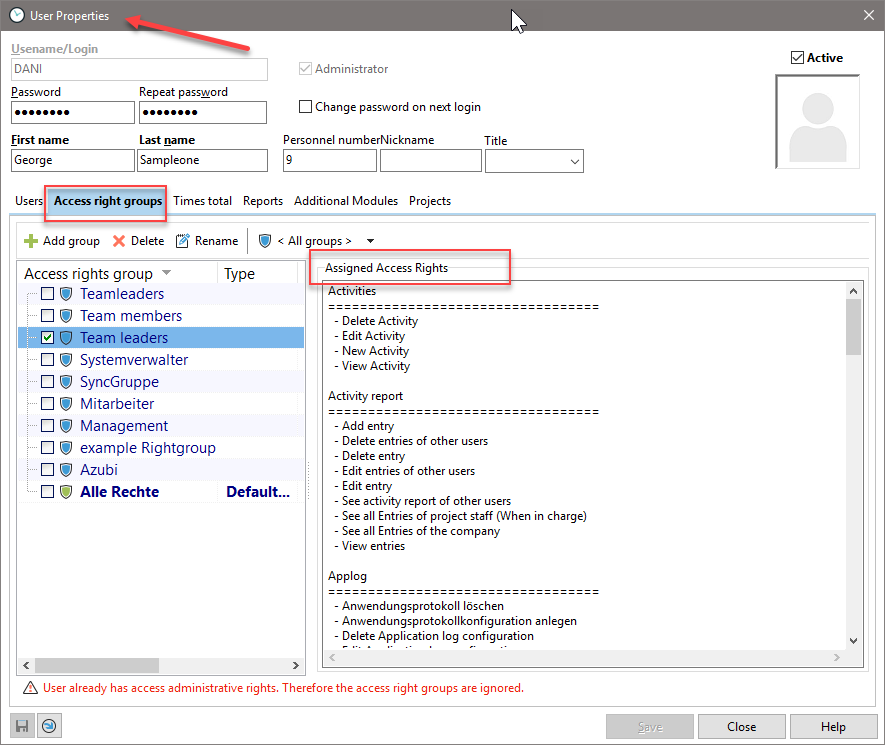
To keep track of your rights groups, you can filter the rights by rights group and by the options available in the submenu.

Each individual right is subordinate to a rights category. In our example, you will see "Create, edit, and delete project type" under the category "Project types." If you want to assign all rights in the "Project types" category at once, simply check the box next to "Project types."
Reverse rights, such as "Anonymize employees," are displayed in red.
|
Note |
|---|---|
Please note that the "All rights" rights group cannot be edited. It always contains all rights that are added to Xpert-Timer over time. It is therefore best to always create your own rights group and take the time to assign the rights. |
|

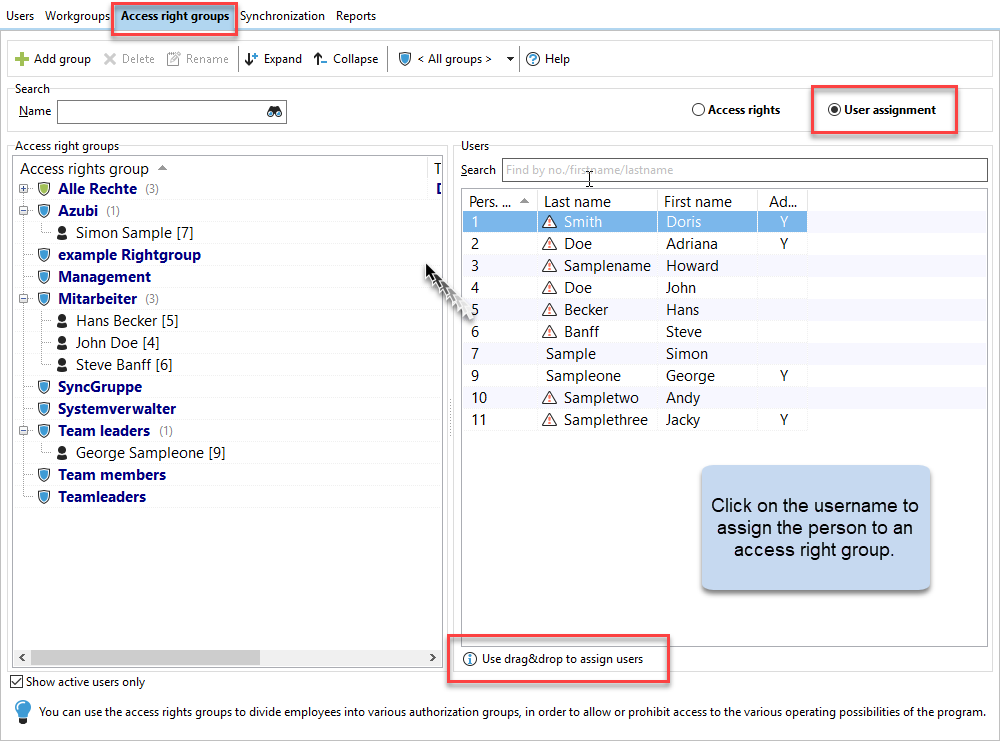
To assign your employees to the appropriate rights groups, switch to "Employee assignment." A window with your employees will open. You can now drag the respective employee to the appropriate rights group with the mouse button.