During installation, you have various options in the "Installation scope" dialog box, which are described in more detail here:
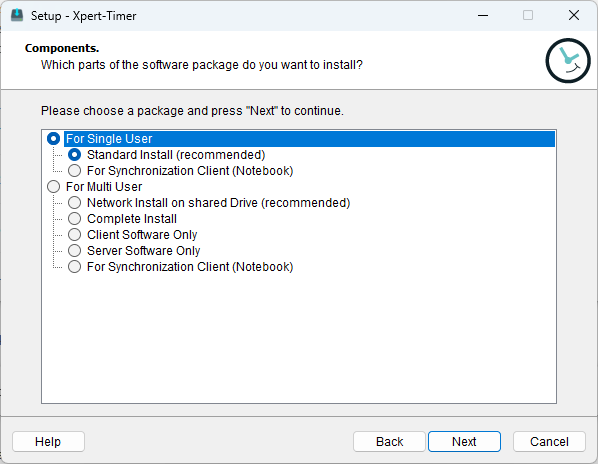
For single users / standard installation: (Xpert-Timer, XTAdmin, database)
A Microsoft Access database is created on your system, to which you are automatically connected when you start Xpert-Timer for the first time.
Installation for synchronization client (notebook): (Xpert-Timer, XTAdmin, Access database)
If you want to exchange data between a notebook/laptop and a central database, please use this setup for installation on your laptop. It includes a local Access database, as well as Xpert-Timer and XTAdmin.
For multiple users / installation on a shared network drive (recommended): (Xpert-Timer, XTAdmin, database, xperttimer.ini file in the program path)
As soon as several employees are working with the Xpert-Timer system, you should install it on a network drive. This way, only one xperttimer.exe application is started by all employees via a shortcut on their desktop. This makes it easier to install updates.
For multi-user/complete installation: (Xpert-Timer, XTAdmin, Access database)
A Microsoft Access database is created on your system, which you may want to place on a shared drive so that all employees can access this one database.
For multi-user / user software only: (Xpert-Timer)
This setup contains all the files necessary to run Xpert-Timer. There are no databases in the setup, and XTAdmin for configuring the database is not included.
For multi-user / server-only software: (XTAdmin, database)
This setup includes XTAdmin, which is required to create a database. You should install this setup on a server where the database is to be created.
For multi-user / installation for synchronization client (notebook): (Xpert-Timer, XTAdmin, database)
If some of your employees want to exchange data between a notebook/laptop and a central database, please use this setup for installation on your laptop. It includes a local Access database, as well as Xpert-Timer and XTAdmin.
|
|---|
We recommend using a MySQL database in a multi-user environment! |

|
|---|
If you are unsure which setup you need, you can always use "For multiple users / Complete installation." That way, you can't go wrong! |