You can create a new quote by clicking on the green plus sign. You have the option of using a completely blank quote template or creating a quote from an existing project structure.
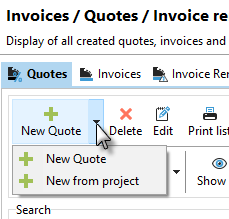
New quote
The dialog for creating a new quote is similar to that for creating an invoice. You can assign the quote to a project or create it independently of a project, but still customer-specific.
If you enter a date in the "Remind from" field in the quote header, you will receive a message via the reminder system in Xpert-Timer as soon as this date is reached. This will remind you to follow up on the quote. The probability (in %) is purely subjective. Here you can specify the percentage likelihood that you think the quote will be accepted by the customer. This information is not processed further.
If you also use document management in Xpert-Timer, you will be asked when saving the PDF document whether you would like to store a copy of the PDF document in document management.
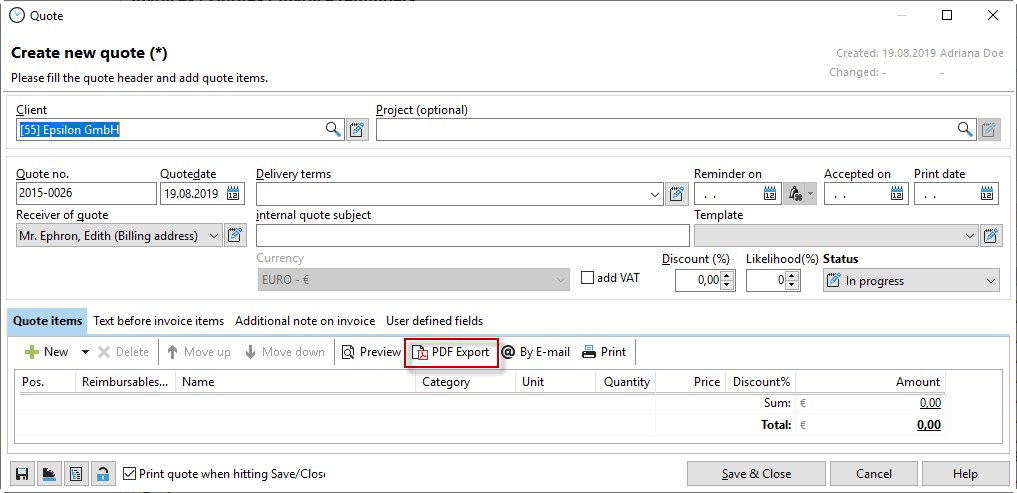
New quote item
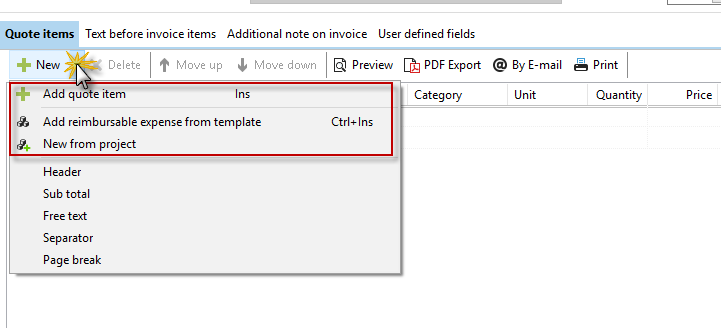
You have the option of creating free quote items. This allows you to freely enter all data for the item.
If you select an item from the service catalog, you can choose from your predefined templates. You can create these templates in the Project Manager under the menu item "Window" --> "Service Templates."
The "New from project" option allows you to select a main project whose subprojects are listed as individual items in the quotation. Times already recorded in the subprojects are listed in the quotation. Conversely, you can also create the project structure from a quotation. Please note that the total price of the item is always transferred to the project as a flat rate.
Further processing of the quote can be found in the chapter "Edit quote."
Create project structure from quote
Create your quote in such a way that you can generate your project structure directly from it using the "Generate project structure" option (see screenshot above). Please note that all quote items are created as main projects. If you want to change the structure of the projects later, you can simply move them in the project manager using drag & drop.