The customer management feature allows you to import existing customer lists into Xpert-Timer. The following import formats are available for this purpose:
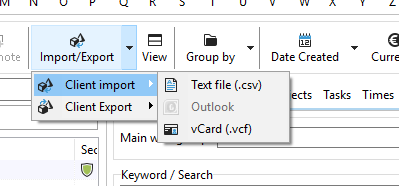
Customer import via CSV file
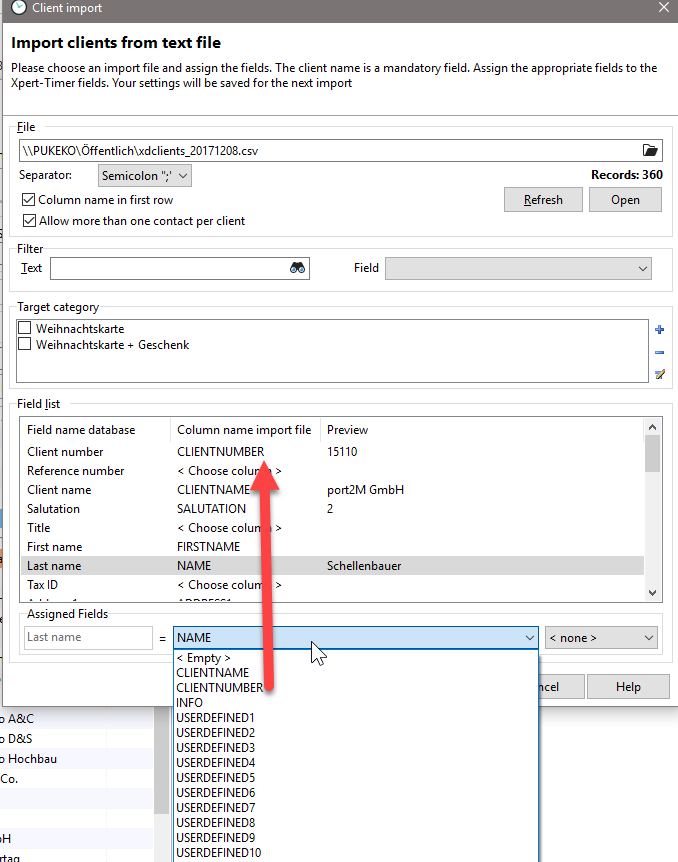
You have the option of importing customers into your Xpert-Timer. To do this, the customer data must be available in CSV format. If you have an existing customer management system, you should be able to export the data in this format.
CSV stands for "Character Separated Values" and means that the values in a list are separated by delimiters (typically semicolons or tabs). For optimal import results, the individual values should be enclosed in single or double quotation marks.
Here is an example of a .csv file:
Customer number;Customer name;Street;Postal code;City;Country;VAT ID;Phone;Fax;Email address;Website address;Mobile phone number
"2001";"Sample Customer";"Sample St. 1";"98798";"Sample Town";"Demoland";"DE546123546";"040562xx";"0821-562xx";"s@demo.de";"www.xp.de";
"2002";"XY Company";"Example Way 3";"87934";"Demodorf";"Demoland";;"0821-1234562xx";;;;;
The customer name is the only mandatory field that must be filled in.
You can also save Excel files in CSV format. The respective column headers must then match the database fields.
Then import the file via the customer import function and assign each field a column name from the CSV file.
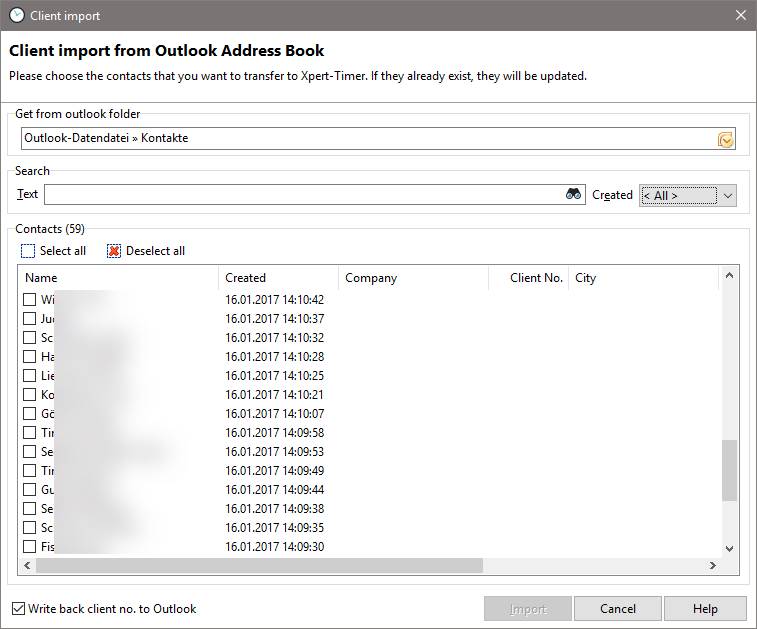
Customer import from Outlook (additional module: Outlook module)
Some versions of Outlook allow you to import contact data.
Please consider the import as a transfer to your Xpert-Timer system. Using the checkboxes, you can also transfer individual additional contacts to Xpert-Timer after the initial import.
|
Customer import |
|---|---|
The import should be viewed as a one-time action. It is intended to transfer existing customers from your Outlook system to Xpert-Timer, where they can be managed further. Please note that any existing customers may be overwritten by a new import. |
|

Customer import from vCard
You can also import individual contacts. To do this, use the vCard file (.vcf). Open the import dialog and select the appropriate file.
