Price lists
Does your company use different billing rates for each customer, project, or employee? You can now meet this requirement using price lists.
Go to the "Prices" section in the configuration. Here you will see the division into the two tabs "Price lists" and "Price groups."
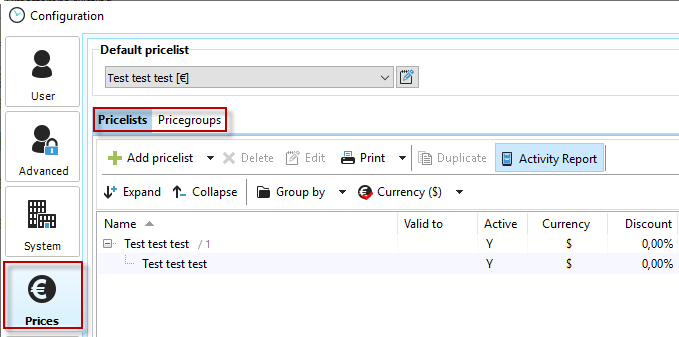
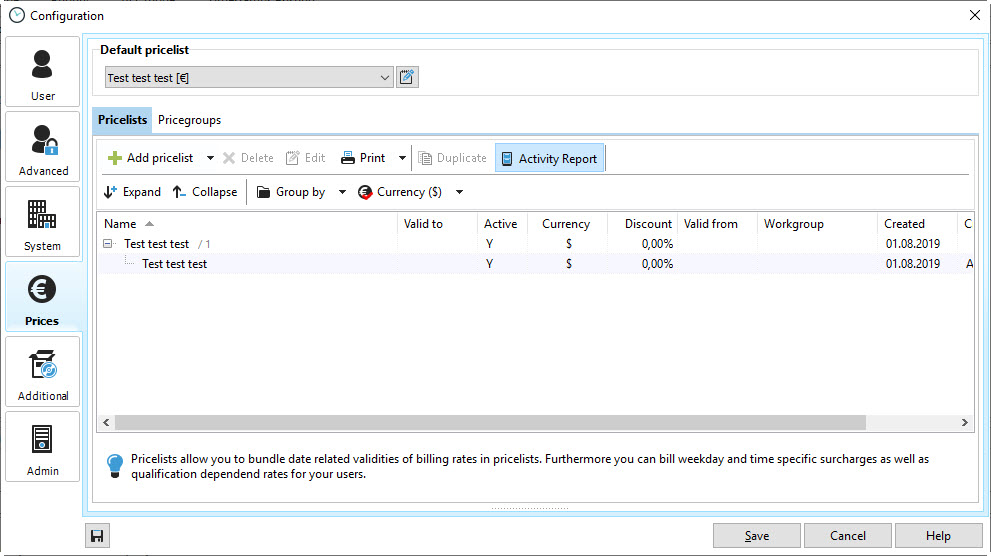
In the "Price lists" tab, you will see a list of the price lists that have already been created. The default price list selected via the price lists applies if you do not select a different price list for either the customer or the project. Price lists can have a validity period. This means that if, for example, you increase your prices annually, you can create the price list for the period from March 1, 2018, to March 1, 2019. From March 1, 2019, the next price list with the increased prices will then apply.
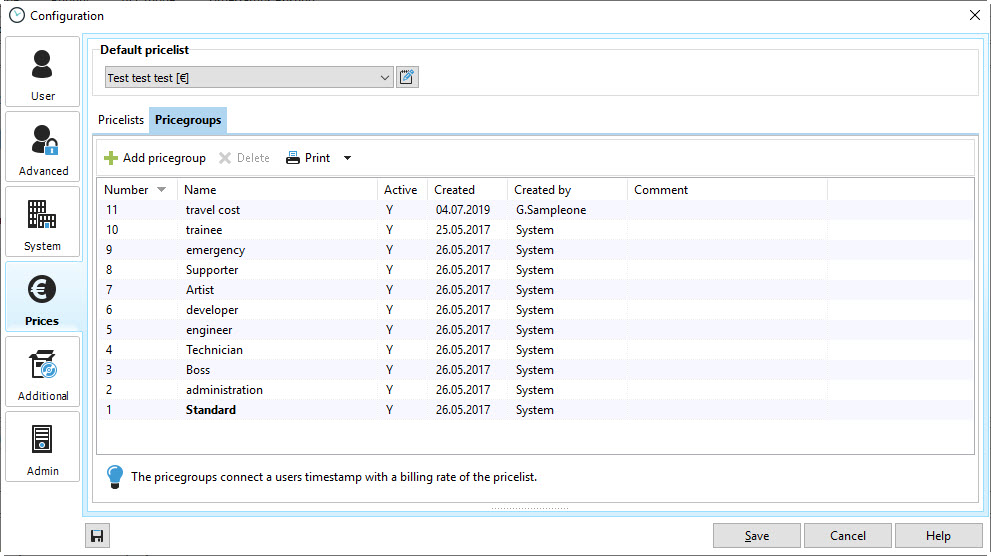
Before you create a new price list, check in the "Price groups" tab whether the price groups provided are sufficient for your needs. You use the price groups to name your different billing rates. These created price groups will later be available to you when setting up the price list for the billing rates.
To create a new price list, click on the green plus sign "New price list." Set the validity date in the "Details" tab. The end date of validity is not mandatory.
Any discount selected will apply to all billing rates created.
Then select the currency for your price list, for example, if you have customers abroad, and enter a short description of the price list if necessary.

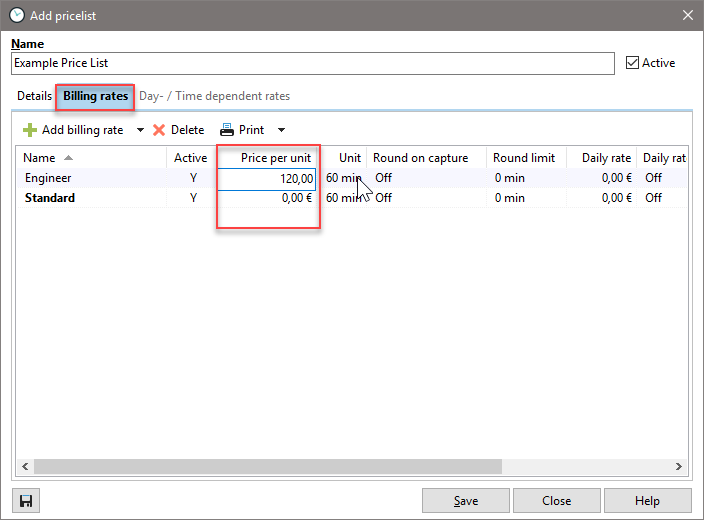
Then switch to the "Billing rates" tab. Here you can select from the available price groups and assign the corresponding billing rates:
After you have selected a corresponding price group, you can enter the price per unit and all other entries directly in the list displayed.
In the last step of the configuration, enter the corresponding validity period in the "Day/time-dependent rates" tab. This allows you to specify exactly when the prices in your new price list should apply. For example, you can create special surcharges for overtime, weekend work, or holidays. Use the factor for this.

All created price lists are now available for selection both for the customer and in each project.
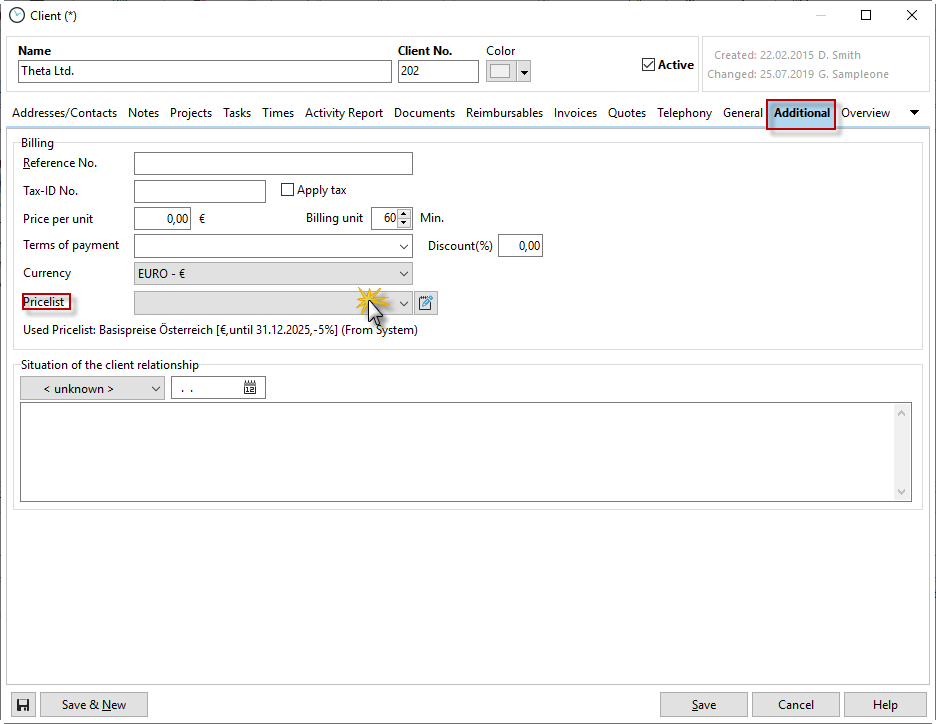
You can find the price list in the "Additional" tab in the customer data.
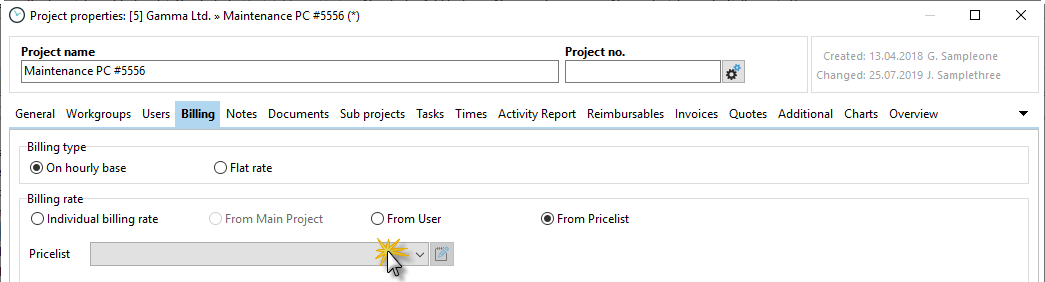
In the project properties, you will find the price list selection in the "Billing" tab.
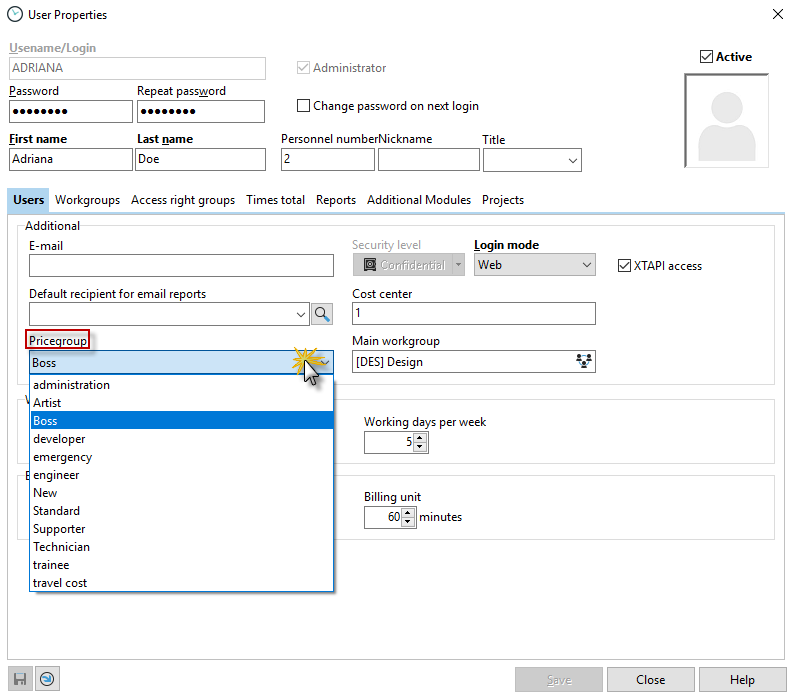
Finally, assign the appropriate price group to each employee in the employee management system.
Double-click on the corresponding employee in the employee management to create the price group in the "Employee" tab.
When you start a timestamp, Xpert-Timer first checks whether a specific price list has been stored in the corresponding project. If none has been selected there, Xpert-Timer checks whether a price list has been stored for the corresponding customer. If not, Xpert-Timer selects the default price list you have set as the basis for calculating prices.
Time stamps and their billing rates can be changed retrospectively. So if you are working on a different project with a different billing rate, simply change the billing rates in the time stamp list. You can select multiple time stamps with the mouse and then change the billing rate by right-clicking.
Please also read the chapter "Time stamps" -> Price lists and billing rates.